Consistent navigation in WordPress 7.1 with persistent toolbar

WordPress 7.1 makes navigation more consistent across the whole adminadmin (and super admin) interface, including the editor, where the difference is most noticeable.

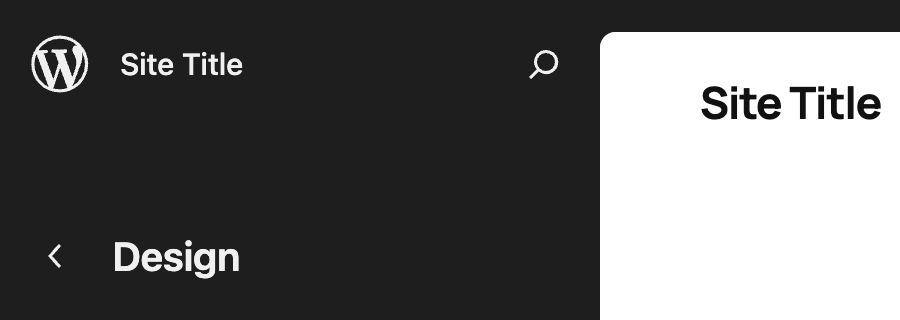
In the editor, the top-left โ€œWโ€ logo / site icon served as the back button, and clicking it took you out of the editor. But a โ€œWโ€ logo / site icon doesnโ€™t read as a back button, and using it for navigation was a frequent source of confusion. Three changes are implemented to fix this situation:

  • the toolbar now appears in the editor as it does everywhere else (except in the Distraction Free mode),
  • the โ€œWโ€ logo / site icon is replaced with a dedicated back button (a chevron), and
  • the site icon, when set, is shown in the toolbar.

The result is a navigation model where each icon means one thing everywhere: the โ€œWโ€ logo always opens the About page, the site icon (when set) always opens the site menu in the toolbar, and the chevron always goes back to the previous screen. The site title also stays visible throughout the editor, including on the editing canvas. See the following images:

BeforeAfter

or with site icon:

BeforeAfter

What it means for users

The toolbar will be shown in Post and Site Editors by default, as part of the persistent navigation layer. If youโ€™d rather work without it, turn on the Distraction Free mode, where the toolbar is hidden as it is today in that mode.

What it means for pluginPlugin A plugin is a piece of software containing a group of functions that can be added to a WordPress website. They can extend functionality or add new features to your WordPress websites. WordPress plugins are written in the PHP programming language and integrate seamlessly with WordPress. These can be free in the WordPress.org Plugin Directory https://wordpress.org/plugins/ or can be cost-based plugin from a third-party. developers

Before WordPress 7.1, the toolbar could already appear in the Post Editor when the fullscreen mode is turned off. The Site Editor has no such mode, so a persistent toolbar in the Site Editor is a new behavior. If your plugin adds a node in the toolbar, itโ€™s worth double-checking if it still works correctly in the Site Editor.

If youโ€™d prefer not to show your pluginโ€™s toolbar node in the editor at all, you can filterFilter Filters are one of the two types of Hooks https://codex.wordpress.org/Plugin_API/Hooks. They provide a way for functions to modify data of other functions. They are the counterpart to Actions. Unlike Actions, filters are meant to work in an isolated manner, and should never have side effects such as affecting global variables and output. it out on editor screens, e.g. by checking $screen->is_block_editor() as follows:

add_action(
    'admin_bar_menu',
    function ( WP_Admin_Bar $wp_admin_bar ) {
        $screen = function_exists( 'get_current_screen' ) ? get_current_screen() : null;

              // use this check to hide the node in the Site Editor
              if ( $screen && 'site-editor' === $screen->id ) {
                      return;
              }
              // ... or use this check to hide the node in any block editor
              if ( $screen && $screen->is_block_editor() ) {
                      return;
              }


        $wp_admin_bar->add_node( ... );
    },
    100
);

Additional resources

  • TracTrac An open source project by Edgewall Software that serves as a bug tracker and project management tool for WordPress. tickets: #65091, #65088
  • Iteration issue

Props to @tyxla, @mayanktripathi32, @joen, @lucasmdo, @mamaduka, and @annezazu for reviewing this post.

#7-1, #editor, #dev-notes, #dev-notes-7-1

The Classic block stays in the inserter for WordPress 7.1

In an earlier post, I announced that the Classic blockBlock Block is the abstract term used to describe units of markup that, composed together, form the content or layout of a webpage using the WordPress editor. The idea combines concepts of what in the past may have achieved with shortcodes, custom HTML, and embed discovery into a single consistent API and user experience. (core/freeform) would be hidden from the inserter by default starting in WordPress 7.1, accompanied by a new filterFilter Filters are one of the two types of Hooks https://codex.wordpress.org/Plugin_API/Hooks. They provide a way for functions to modify data of other functions. They are the counterpart to Actions. Unlike Actions, filters are meant to work in an isolated manner, and should never have side effects such as affecting global variables and output. and a companion pluginPlugin A plugin is a piece of software containing a group of functions that can be added to a WordPress website. They can extend functionality or add new features to your WordPress websites. WordPress plugins are written in the PHP programming language and integrate seamlessly with WordPress. These can be free in the WordPress.org Plugin Directory https://wordpress.org/plugins/ or can be cost-based plugin from a third-party..

Iโ€™ve decided to revert this change. The Classic block will continue to appear in the inserter in WordPress 7.1, exactly as it does today. There is no change in behavior for users or developers, and no migrationMigration Moving the code, database and media files for a website site from one server to another. Most typically done when changing hosting companies. is required.

What this means

  • The Classic block remains available in the inserter by default. You can insert new Classic blocks through the inserter, block library, and slash commands as before.
  • The wp_classic_block_supports_inserter filter has been removed. Because this change never shipped in a stable WordPress release, the filter has no backward-compatibility footprint; there is nothing to migrate away from.
  • The block-level deprecation/migration notice has been removed. The Classic block editing experience returns to what it was previously, including the โ€œConvert to blocksโ€ toolbar action.
  • The Enable Classic Block plugin will be closed. With the default behavior restored, the plugin no longer serves a purpose. If you installed it, you can safely deactivate and remove it; no action is otherwise needed.

Why it is being reverted

After discussing this with a number of people and gathering feedback from different places, it became clear that this approach had things largely backward. Itโ€™s one step that makes the experience worse with no direct gain, and it doesnโ€™t really get us any closer to transparently not loading TinyMCE. One of the takeaways is that the Classic block should become obsolete by choice, not by force. I believe time will be better spent to make the alternative genuinely better, while also smoothly, losslessly migrating content, so that users move off Classic block because they want to, not because the door has been removed.

Where the effort goes next

Much of the groundwork from this effort remains valuable, and the intention is to keep pursuing it from a user-first angle:

  • Understanding more in-depth why users still rely on Classic and bridging those gaps
  • Make โ€œConvert to Blocksโ€ flawless โ€“ it still has a bunch of flaws and inconsistencies
  • Work on better and more intuitive conversion/migration mechanisms, including mass migration
  • Improve TinyMCE asset registration and allow it to be disabled under various circumstances.
  • Build a mechanism for declaring proper explicit dependency on TinyMCE and work with plugins to utilize it.
  • Continue exploring ways to load TinyMCE on demand / asynchronously, among other performance improvements
  • Not loading TinyMCE on the block editor if the Classic Block is disabled from the block manager

Thank you to everyone who shared feedback and helped course-correct here. This work continues, pointed more squarely at whatโ€™s best for users.


Props to @mamaduka for reviewing this post.

#7-1, #dev-notes, #dev-notes-7-1

Hiding the Classic block from the inserter in WordPress 7.1

Note: this decision was reverted. You can read more about it in the new dev note.

Weโ€™ve just merged a change that will be part of WordPress 7.1 that hides the Classic blockBlock Block is the abstract term used to describe units of markup that, composed together, form the content or layout of a webpage using the WordPress editor. The idea combines concepts of what in the past may have achieved with shortcodes, custom HTML, and embed discovery into a single consistent API and user experience. from the block inserter by default. The Classic block stays registered, every existing Classic block keeps working and remains editable, and a new filterFilter Filters are one of the two types of Hooks https://codex.wordpress.org/Plugin_API/Hooks. They provide a way for functions to modify data of other functions. They are the counterpart to Actions. Unlike Actions, filters are meant to work in an isolated manner, and should never have side effects such as affecting global variables and output. lets anyone bring it back into the inserter. This post explains what changes, why, and how to opt back in if needed.

Whatโ€™s changing

Starting in WordPress 7.1, the Classic block (core/freeform) no longer appears in the block inserter (#11712, Trac #65166, originally #77911 in GutenbergGutenberg The Gutenberg project is the new Editor Interface for WordPress. The editor improves the process and experience of creating new content, making writing rich content much simpler. It uses โ€˜blocksโ€™ to add richness rather than shortcodes, custom HTML etc. https://wordpress.org/gutenberg/). In practice, this means you canโ€™t add a new Classic block from the inserter, the block library, or slash commands.

Nothing else about the block changes:

  • The Classic block remains registered.
  • All existing Classic blocks (including any <!-- wp:freeform --> content) continue to render and stay fully editable, exactly as before.
  • The Classic editor and the underlying TinyMCE experience are untouched. If a post type doesnโ€™t use the block editor, nothing here applies to it.

This is purely about steering new content away from the legacy Classic block, not about removing anything you already have.

To be clear: the Classic editor is not affected at all by this change. This is strictly about the Classic block inside the block editor. If you use the Classic editor (for example, via the Classic Editor pluginPlugin A plugin is a piece of software containing a group of functions that can be added to a WordPress website. They can extend functionality or add new features to your WordPress websites. WordPress plugins are written in the PHP programming language and integrate seamlessly with WordPress. These can be free in the WordPress.org Plugin Directory https://wordpress.org/plugins/ or can be cost-based plugin from a third-party. or on post types that donโ€™t use the block editor), your experience stays exactly the same.

Why weโ€™re doing this

The Classic block has been the bridge from the pre-block era into the block editor, and it has served that role well. But itโ€™s also the one block in CoreCore Core is the set of software required to run WordPress. The Core Development Team builds WordPress. that doesnโ€™t behave like a block:

  • Architectural consistency. Every other Core block is a node in the block tree. The Classic block is the lone exception, opaque HTMLHTML HyperText Markup Language. The semantic scripting language primarily used for outputting content in web browsers. rendered through a separate editor embedded inside the block editor. Keeping it as a default inserter option works against the block-first model on which the editor is built.
  • Reducing the inflow. The migrationMigration Moving the code, database and media files for a website site from one server to another. Most typically done when changing hosting companies. path away from Classic content (Convert to Blocks) has existed for years, and Classic usage keeps shrinking. Hiding the block from the inserter stops new Classic content from being created, so that set keeps getting smaller rather than growing.
  • Maintenance leverage. Many block-library improvements have to special-case the Classic block. Each special handling may be small on its own, but cumulatively, this may slow down work that benefits every other block.

The broader, longer-term goal, which will be covered separately as it matures, is to make the Classic block fully opt-in and eventually to lay the groundwork for loading TinyMCE only when itโ€™s actually needed. WordPress 7.1 is just the first user-facing step on that path. None of the later steps are happening in 7.1, and each will get its own discussion and dev notedev note Each important change in WordPress Core is documented in a developers note, (usually called dev note). Good dev notes generally include a description of the change, the decision that led to this change, and a description of how developers are supposed to work with that change. Dev notes are published on Make/Core blog during the beta phase of WordPress release cycle. Publishing dev notes is particularly important when plugin/theme authors and WordPress developers need to be aware of those changes.In general, all dev notes are compiled into a Field Guide at the beginning of the release candidate phase..

Opting back in

If you (or your users) still want the Classic block available in the inserter, thereโ€™s a dedicated filter: wp_classic_block_supports_inserter.

Return true to show it everywhere:

add_filter( 'wp_classic_block_supports_inserter', '__return_true' );

The filter also receives the post being edited, so you can make the decision conditional, for example, per post type:

add_filter(
	'wp_classic_block_supports_inserter',
	function ( $supports_inserter, $post ) {
		return 'page' === $post->post_type ? true : $supports_inserter;
	},
	10,
	2
);

If youโ€™d rather not write code, thereโ€™s a small plugin that does exactly this, Enable Classic Block, which flips the filter on for you. The plugin has already been submitted for approval to the WordPress Plugin Directory.

Backward compatibility

This change is opt-out by design and doesnโ€™t break anything:

  • No content is modified or migrated. Existing Classic blocks are left exactly as they are.
  • The block, its edit behavior, and the Convert to Blocks action all continue to work.
  • The core/freeform block remains registered, so any code that relies on it being present keeps functioning.
  • Restoring the previous behavior is a one-line filter (or one tiny plugin) away.

Whatโ€™s next

Alongside this change, weโ€™re investing in the surrounding experience so that moving away from the Classic block is smoother for everyone:

  • A deprecation/migration notice (experimental). Thereโ€™s an experiment in Gutenberg that surfaces a notice inside existing Classic blocks, with one-click actions to convert the content to blocks or to a Custom HTML block. Weโ€™re exploring this as a gentle way to highlight that the Classic block is being phased out and to make the migration path more discoverable. Itโ€™s behind an experiment flag for now while we refine it for a WordPress release.
  • Improving everything around it. In parallel, weโ€™re improving and fixing the pieces that live by the Classic block: the Custom HTML block, the Convert to Blocks path, freeform handling and conversion, and related compatibility layers. The goal is that by the time Classic content needs to move, the tools to move it are solid.

These, alongside other planned next steps, can be tracked in the dedicated tracking issue.

Weโ€™d love your feedback

This is an early step in a longer effort, and we want to get it right. If you maintain plugins or custom integrations, run large sites, or have workflows that depend on the Classic block, weโ€™d really like to hear from you, especially around migration and bulk-conversion needs.


Props to @desrosj, @mamaduka, @mukesh27, @westonruter, @wildworks, and @yuliyan for the contributions, feedback, and code reviews.

Props to @mamaduka and @yuliyan for reviewing this post.

#7-1, #dev-notes, #dev-notes-7-1

React 19 Upgrade in WordPress

WordPress is upgrading from ReactReact React is a JavaScript library that makes it easy to reason about, construct, and maintain stateless and stateful user interfaces. https://reactjs.org 18 to React 19. This change will first ship in the GutenbergGutenberg The Gutenberg project is the new Editor Interface for WordPress. The editor improves the process and experience of creating new content, making writing rich content much simpler. It uses โ€˜blocksโ€™ to add richness rather than shortcodes, custom HTML etc. https://wordpress.org/gutenberg/ pluginPlugin A plugin is a piece of software containing a group of functions that can be added to a WordPress website. They can extend functionality or add new features to your WordPress websites. WordPress plugins are written in the PHP programming language and integrate seamlessly with WordPress. These can be free in the WordPress.org Plugin Directory https://wordpress.org/plugins/ or can be cost-based plugin from a third-party. (version 23.3) and is expected to land in WordPress 7.1.

In June 2024, WordPress 6.6 shipped React 18.3, which added deprecation warnings to help developers prepare for this upgrade (see Preparation for React 19 Upgrade). Now that the migrationMigration Moving the code, database and media files for a website site from one server to another. Most typically done when changing hosting companies. work is complete, this post covers everything plugin and theme developers need to know.

Timeline

  • Gutenberg plugin: React 19 will be merged into the Gutenberg trunk branchbranch A directory in Subversion. WordPress uses branches to store the latest development code for each major release (3.9, 4.0, etc.). Branches are then updated with code for any minor releases of that branch. Sometimes, a major version of WordPress and its minor versions are collectively referred to as a "branch", such as "the 4.0 branch". after the 7.0 release. It will ship in a Gutenberg release shortly after, with npm packages following.
  • WordPress CoreCore Core is the set of software required to run WordPress. The Core Development Team builds WordPress.: The upgrade is targeted for WordPress 7.1, providing a full release cycle for testing.

We encourage developers to begin testing as early as possible once the Gutenberg plugin release with React 19 is available.

Removed APIs

The following functions have been removed from React 19 after a long deprecation period. In WordPress, these were deprecated since WordPress 6.2 (March 2023):

render and hydrate

ReactDOM.render() and ReactDOM.hydrate() have been removed. Use createRoot() and hydrateRoot() instead:

// Before (deprecated).
import { render } from '@wordpress/element';
render( <App />, document.getElementById( 'root' ) );

// After.
import { createRoot } from '@wordpress/element';
const root = createRoot( document.getElementById( 'root' ) );
root.render( <App /> );

unmountComponentAtNode

ReactDOM.unmountComponentAtNode() has been removed. Use root.unmount() instead:

// Before (deprecated).
import { unmountComponentAtNode } from '@wordpress/element';
unmountComponentAtNode( document.getElementById( 'root' ) );

// After.
root.unmount();

findDOMNode

ReactDOM.findDOMNode() has been removed from React 19. However, @wordpress/element continues to export a polyfill for findDOMNode to ease the transition. Note that the react-dom script itself will no longer include this function โ€” only the wp-element script will provide it.

We recommend migrating away from findDOMNode by using refs instead, as it was already discouraged in earlier versions of React.

defaultProps for function components

As noted in the React 18.3 dev note, defaultProps for function components is no longer supported. Use ES6 default parameters instead:

// Before (no longer supported).
function MyComponent( { size } ) {
	return <div style={ { width: size } } />;
}
MyComponent.defaultProps = { size: 100 };

// After.
function MyComponent( { size = 100 } ) {
	return <div style={ { width: size } } />;
}

Changed behavior

The inert attribute is now a boolean

The HTMLHTML HyperText Markup Language. The semantic scripting language primarily used for outputting content in web browsers. inert attribute has changed from a string type to a boolean in React 19. If your code sets inert as a string (inert="true" or inert=""), update it to use a boolean value:

// Before.
<div inert="" />
<div inert="true" />

// After.
<div inert />
<div inert={ true } />

Ref callbacks can return cleanup functions

Ref callbacks can now optionally return a cleanup function, similar to useEffect. React will call the cleanup function when the element is removed from the DOM. This is a powerful new pattern that reduces the need for separate useEffect hooksHooks In WordPress theme and development, hooks are functions that can be applied to an action or a Filter in WordPress. Actions are functions performed when a certain event occurs in WordPress. Filters allow you to modify certain functions. Arguments used to hook both filters and actions look the same. to manage DOM element lifecycle.

// New pattern: ref callback with cleanup.
<div ref={ ( node ) => {
	if ( node ) {
		const handler = () => { /* ... */ };
		node.addEventListener( 'scroll', handler );
		return () => node.removeEventListener( 'scroll', handler );
	}
} } />

Important: If your existing ref callbacks return a value (e.g., returning something other than undefined), React 19 may interpret that as a cleanup function. Make sure your ref callbacks either return undefined or a valid cleanup function.

forwardRef is no longer needed

In React 19, function components can accept ref as a regular prop. forwardRef still works but is considered deprecated and will be removed in a future version.

// Before.
const MyInput = forwardRef( ( props, ref ) => {
	return <input ref={ ref } { ...props } />;
} );

// After.
function MyInput( { ref, ...props } ) {
	return <input ref={ ref } { ...props } />;
}

New APIs available

React 19 introduces several new APIs, now available through @wordpress/element:

  • use โ€” Read a resource (Promise or Context) during render.
  • useActionState โ€” Manage state based on form action results.
  • useOptimistic โ€” Show optimistic UIUI User interface state while an async action is in progress.
  • useFormStatus โ€” Access the status of a parent form.

From React 19.2:

  • Activity โ€” Hide and show parts of the UI while preserving their state and DOM.
  • useEffectEvent โ€” Extract non-reactive logic from effects.

TypeScript type changes

React 19 includes a major update to its TypeScript types. Developers using TypeScript should be aware of the following:

Ref types

The MutableRefObject type is deprecated. The type inference rules for useRef and RefObject have changed, especially regarding declaring values as โ€œT or nullโ€œ. Update your code to use the new RefObject type.

ReactElement props type changed from any to unknown

The ReactElement type now types its props as unknown instead of any. This reveals previously unsound access to props that was silently allowed before. This manifests especially in cloneElement calls, where reading or setting props on a cloned element now requires the element type to explicitly support those props.

HTML element prop conflicts

Many WordPress components extend native HTML elements, accepting all props that (for example) a <div> accepts plus custom props. If the HTML standard adds a new prop to <div> with a name that conflicts with a custom prop, TypeScript may report errors. Developers may need to resolve naming conflicts (as was the case with onToggle in this migration).

For a comprehensive list of TypeScript changes, see the React 19 typechecking guide.

How to test your plugin

  1. Install the latest Gutenberg plugin that includes React 19 (version TBD).
  2. Enable development mode (SCRIPT_DEBUG set to true in wp-config.php) to get detailed warnings and errors.
  3. Test all major features of your plugin โ€” especially any code that uses the removed APIs (render, hydrate, unmountComponentAtNode, findDOMNode, defaultProps for function components).
  4. Check the browser console for React warnings and errors. React 19 has improved error reporting and may surface issues that were previously silent.
  5. Test iframeiframe iFrame is an acronym for an inline frame. An iFrame is used inside a webpage to load another HTML document and render it. This HTML document may also contain JavaScript and/or CSS which is loaded at the time when iframe tag is parsed by the userโ€™s browser. interactions if your plugin renders content inside iframes or communicates between frames, as there have been subtle behavior changes in this area.

Further reading

  • Official React 19 upgrade guide โ€” Full list of breaking changes, deprecations, and new features.
  • React 19 blog post โ€” Overview of whatโ€™s new in React 19.
  • Gutenberg tracking issue #71336 โ€” Tracking the migration effort.
  • Gutenberg PR #61521 โ€” The main implementation PR.
  • Preparation for React 19 Upgrade (WP 6.6 dev note) โ€” The earlier dev notedev note Each important change in WordPress Core is documented in a developers note, (usually called dev note). Good dev notes generally include a description of the change, the decision that led to this change, and a description of how developers are supposed to work with that change. Dev notes are published on Make/Core blog during the beta phase of WordPress release cycle. Publishing dev notes is particularly important when plugin/theme authors and WordPress developers need to be aware of those changes.In general, all dev notes are compiled into a Field Guide at the beginning of the release candidate phase. from the React 18.3 upgrade.

Call for testing

We encourage all plugin and theme developers to test their code with the Gutenberg plugin as soon as the React 19 release is available. Early testing helps us identify and fix issues before the upgrade reaches WordPress Core. If you encounter bugs, please report them on the Gutenberg GitHub repository.


Props to @tyxla, @Mamaduka, @jsnajdr, @ellatrix, @aduth, @youknowriad, and @mciampini for their contributions to this migration.

#7-1, #dev-notes, #dev-notes-7-1